Keys below are for Mac. On Windows, use Ctrl instead of ⌘ and Alt instead of ⌥. Shortcuts speed you up a lot, but there's no need to memorize them all at once. Learn the ones you use most, one at a time.
Two things to remember first
Press ⌘/ to open the «What next?» window. Type a few letters of a command's name and press Enter to run it. Each row also shows the command's group and shortcut, so using quick actions naturally teaches you the shortcuts you use often. ⌃⇧? opens a shortcut sheet that lists only commands with shortcuts.
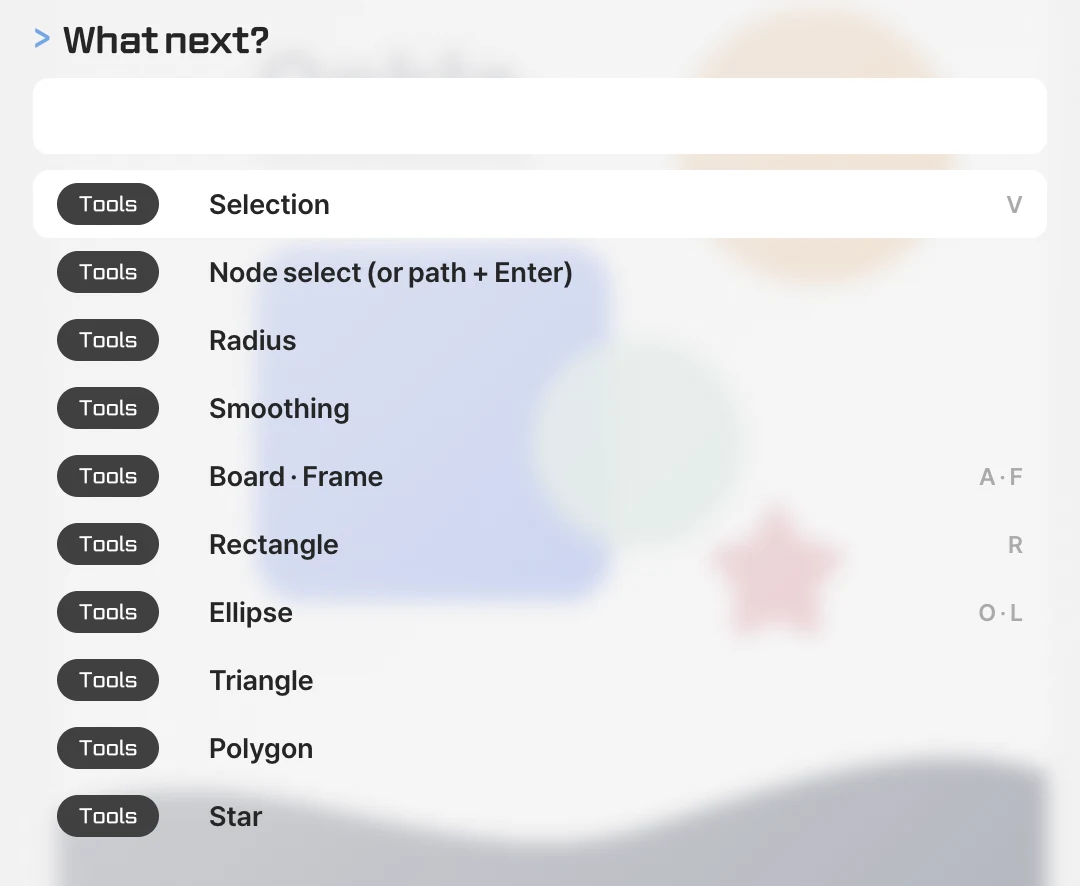
One thing to watch: if you type while the canvas has focus, your keys are treated as shortcuts. To type in a search field or text box, click the field first to place the cursor, then type.
Switching tools
V is selection, A artboard, F frame, R rectangle, O ellipse, T text and P path (L is the same ellipse as O). For photos, use I picker, B brush, E eraser, C crop, W pixel select, S stamp, J healing and ⇧O dodge. To move around, use the H hand tool, or simply drag while holding Space to pan without changing the tool you're using.
Editing
Undo is ⌘Z and redo is ⇧⌘Z. Copy, cut and paste are the familiar ⌘C · ⌘X · ⌘V. ⌘D duplicates and repeats the offset of your last move, which is handy for lining things up at equal spacing. Drag while holding ⌥ to duplicate as you move.
To carry just the look to another element, copy fill, stroke and effects with ⌥⌘C and paste them with ⌥⌘V. ⌘R renames, ⌘F finds, ⌘S saves, and ⇧⌘E exports everything using the settings saved on each layer.
Selecting and organizing
Select all with ⌘A and deselect with ⇧⌘A or Esc. Enter steps «inside», into a group's children, a path's points or text editing, while ⇧Enter selects the parent one level up and Tab moves to the next element. With these three keys you can work through deeply nested designs without hunting with the mouse.
Group with ⌘G, ungroup with ⇧⌘G, and wrap the selection in a frame with ⌥⌘G. Move one step forward or back with ⌘] · ⌘[, and add ⌥ to send to the very front or back. Lock is ⇧⌘L, hide is ⇧⌘H, and flip horizontally or vertically is ⇧H · ⇧V. For UI work you'll often use ⌥⌘K to create a component, ⌥⌘B to detach an instance and ⇧A to turn on auto layout. K toggles scale mode: while it's on, resizing also scales stroke width, corners, effects and font size, so proportions stay intact.
Viewing
⇧1 shows all artboards on one screen, ⇧2 zooms to the selection, ⌘0 fits the screen and ⇧0 shows 100%. Zoom with ⌘+ · ⌘−, and go to the next or previous artboard with N · ⇧N. ⌘Y hides fills and shows outlines only, which helps you see the structure of overlapping shapes. ⇧⌘R toggles rulers and ⌘; shows or hides guides.
Good habits to pick up
Press a number key with an element selected to change its opacity: 1 is 10% and 0 is 100%, and pressing 4 then 5 quickly gives 45%. Hold ⌥ and point at another element to see the distance between them, and type math such as 100/3, *2 or +10 straight into number fields. Nudge with the arrow keys, and add ⇧ for bigger steps. You can change the nudge distance in Canvas Settings.