Adding motion to a static design makes the same piece stand out much more. In Opkle Editor you can make animations without code, edit them together with video and export to MP4, and even show finished designs as 3D mockups.
Adding animation
Select the shape, text or image to animate and choose right-click Transform › Animation to open the animation window. Once an animation is set, the Animation section on the right shows it as Applied. The quickest way is to pick from All presets. Hundreds of motions are ready, from basics like fade in, up, zoom in, bounce, shake, pulse and spin to entrance, exit and emphasis families, and they apply with a single click.
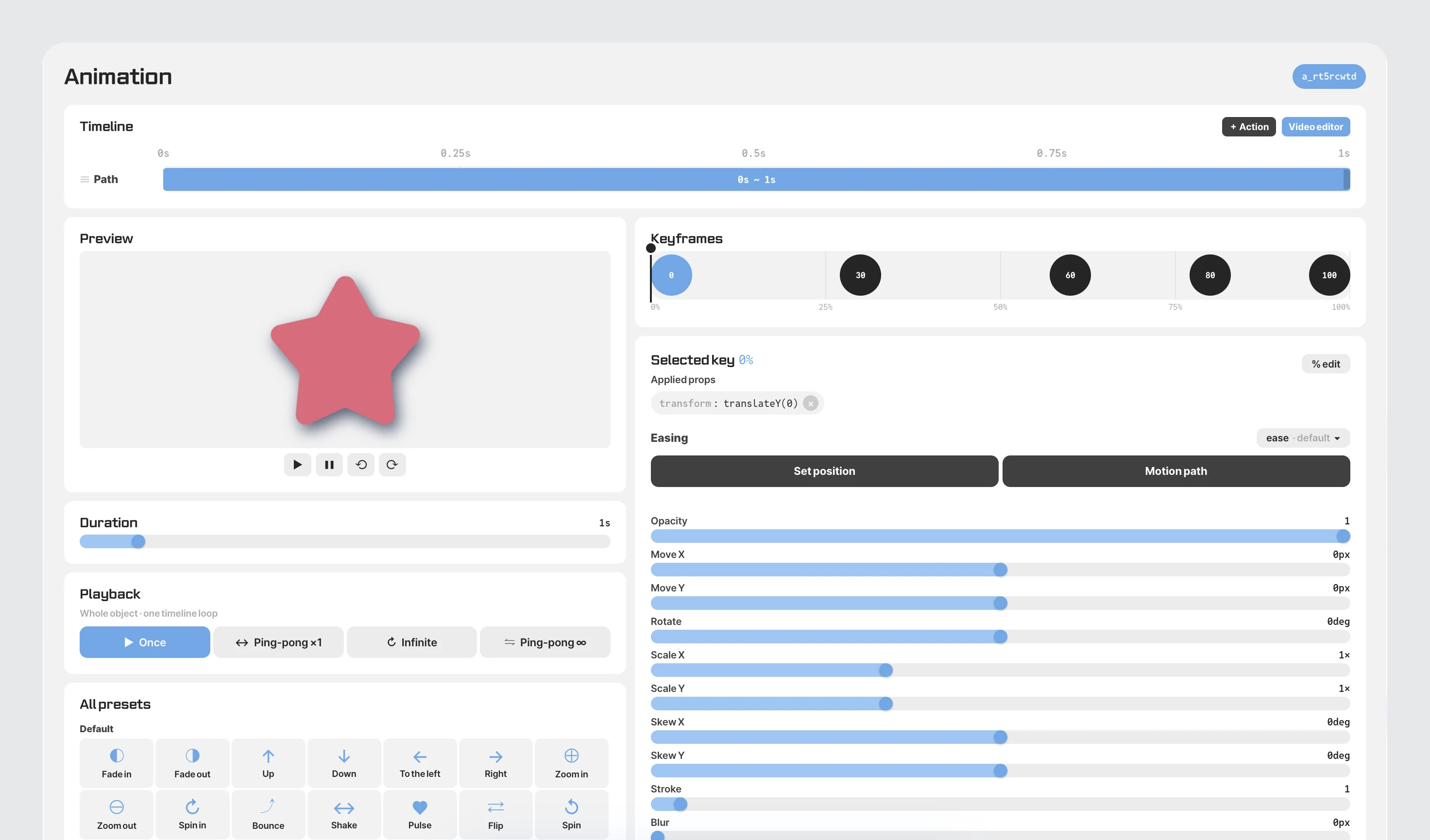
Set the length with Duration and choose in Playback whether to play once, back and forth, or loop forever, and a basic animation is done. Check it right away with the play button under the preview, and after closing the window, use Play · Pause in the inspector to watch it on the artboard.
Building your own with keyframes
Motion that isn't in the presets is made with Keyframes. Place points between 0% and 100% and set values at each, such as opacity, move, rotation, scale, skew, stroke width, blur and brightness, contrast, saturation and hue, and the editor connects them smoothly. Changing fill color, text color and font is possible too. Pick the feel of the speed (ease) in Easing, and set the route with Set position or Motion path. The Timeline at the top shows each element's timing at a glance, and + Action chains on the next motion. Starting from a preset and tweaking values in the keyframes is the easiest way to get the motion you want.
The video editor
Click Video editor in the inspector or right-click an empty spot and choose Canvas › Video editor, and the same screen switches to video mode. A timeline appears at the bottom with one track per layer, so you can watch video and animation together and build them into one scene. Drop video files (MP4 · WebM) onto the canvas or add them with Insert → Video file, then apply filters and adjustments like photos or trim them with C. Check it with the play controls above the timeline, and use Export and Close at the top to export and leave.
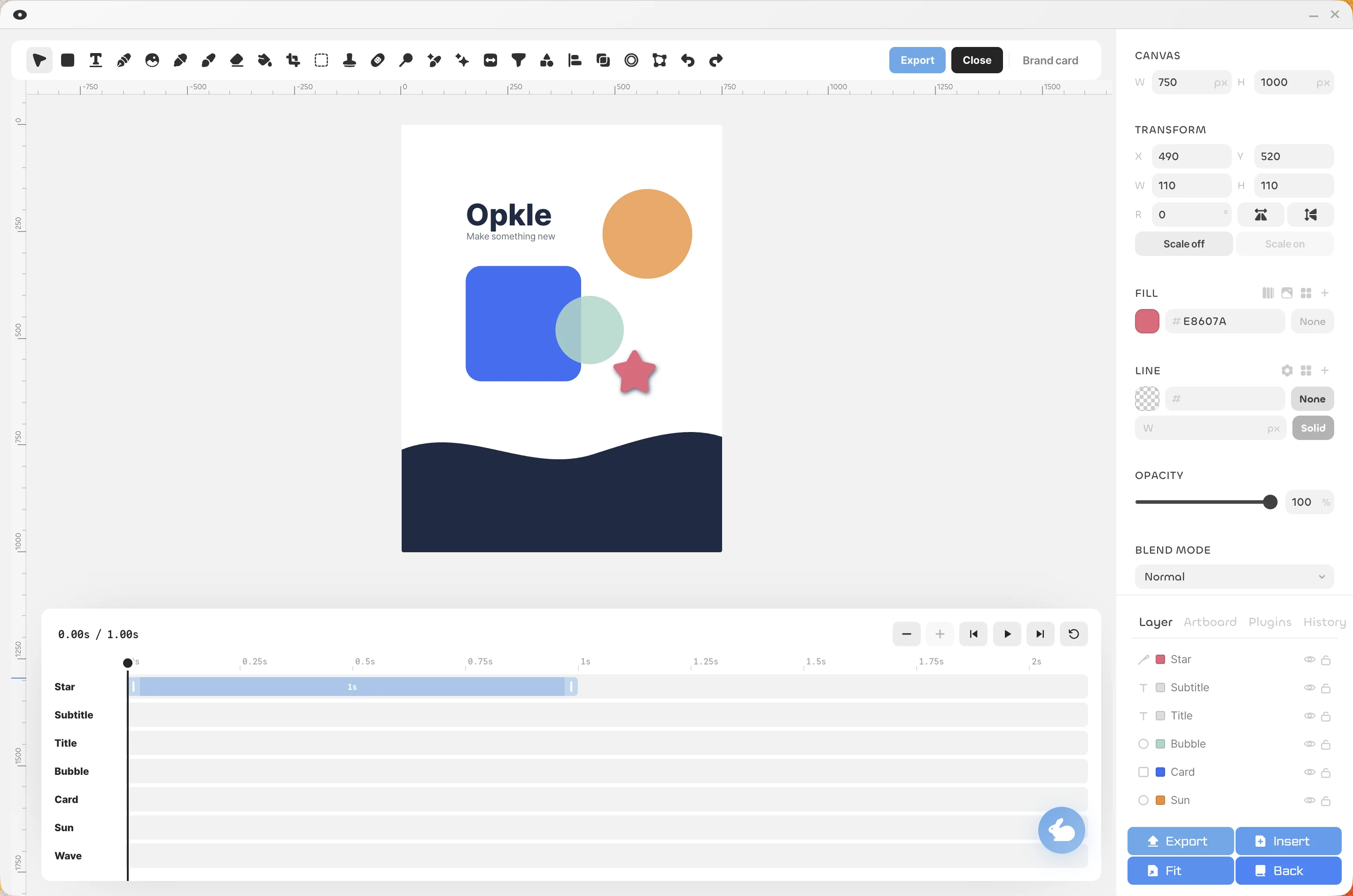
Exporting to MP4
Choose Export → MP4 file at the bottom right, and the animation becomes a video file with a long side of 1920px. It's great for animated covers, promo videos and short social content. To save only the animation settings, use Export → Animation, and to reuse them on another canvas, use Insert → Animation file.
3D mockups
Open the 3D editor with + New 3D in the 3D row on the left of the project screen. Put your own cover or poster designs on 3D models like books and posters, set up lighting and camera angles, and make mockup images that look like the real thing. When you present a finished design or put it on a sales page, it conveys the feel of the piece far better than a flat image.