You don't need to open a separate photo editor: you can place and polish the photos for your design on the same screen. Being able to retouch a photo, put a logo and text on it in the same spot and export it right away is one of Opkle Editor's big strengths. This page covers the basic flow for working with photos.
Placing photos
The easiest way is to drag a photo file onto the canvas; it lands where you drop it. You can also use Insert → Image file at the bottom right, or right-click an empty spot and choose Create › Image. JPG, PNG and WebP photos are supported, and you can drop several at once.
Cropping
Select a photo and press C to crop it. Drag the edges to choose what to keep, then press Enter or double-click to apply, or press Esc to cancel. Pressing C with nothing selected resizes the artboard instead of a photo, so use it according to what you want to crop (see «Artboards and layers»).
Fitting to the artboard
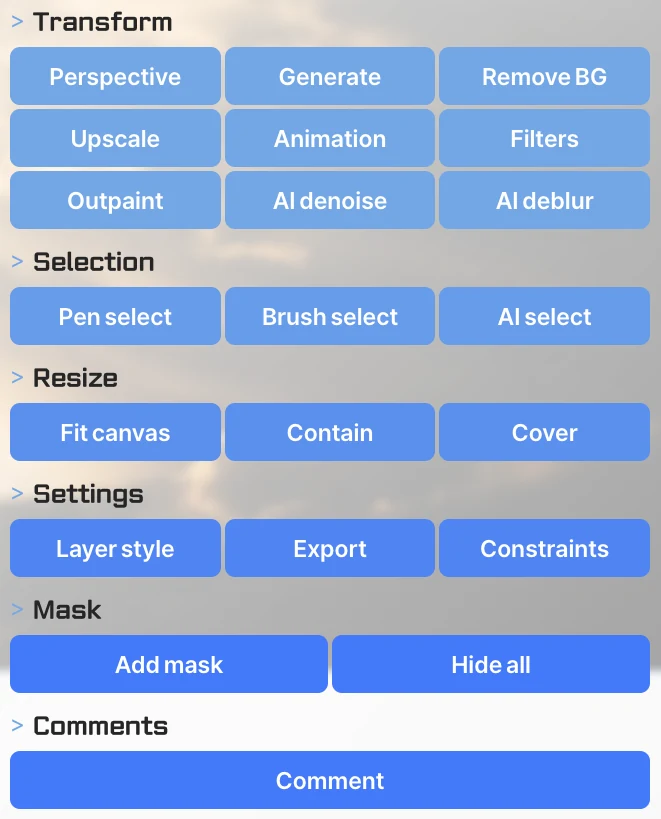
Right-click a photo and use the Resize group to match the artboard and photo sizes in one step. Fit canvas changes the artboard to the photo's ratio (long side 1980px) and fits the photo exactly, which is handy when one photo is the whole piece. Contain and Cover keep the artboard size and center the photo: contain fits the whole photo inside the artboard, and cover fills the artboard with no gaps. Use cover to fill a fixed-size banner, and contain when the photo must not be cropped.
Showing only part with a mask
Right-click a photo and use the Mask group to show only part of it. Masks hide by painting, so the original photo stays intact and you can change it anytime. Add mask starts fully visible and you paint what to hide; Hide all starts fully hidden and you paint what to show. Use the first when keeping most of the photo, and the second when revealing only a small part.
Selecting just what you need
Select only the part you want with Pen select · Brush select · AI select in the Selection group of the photo's right-click menu, and you can paint or adjust inside it alone. Color and brightness are covered in «Photo adjustments», and painting and retouching in «Brush, selection, retouch and filters».