Opkle Editor stores your work on the device you're using. So before clearing browser data or switching devices, be sure to back up to a project file. Making a habit of backing up once on days you finish important work keeps your work safe when the unexpected happens.
Backing up to a project file
In the editor, click Back to return to the project screen, then choose Export → Project at the bottom right. The project's canvases, documents, tables and images are saved as a single .opkle file, along with the history of images and videos made with AI. With just this one file you can restore the whole project, so keep another copy outside the device, such as in cloud storage or on an external drive, to be safe.
Continuing on another device
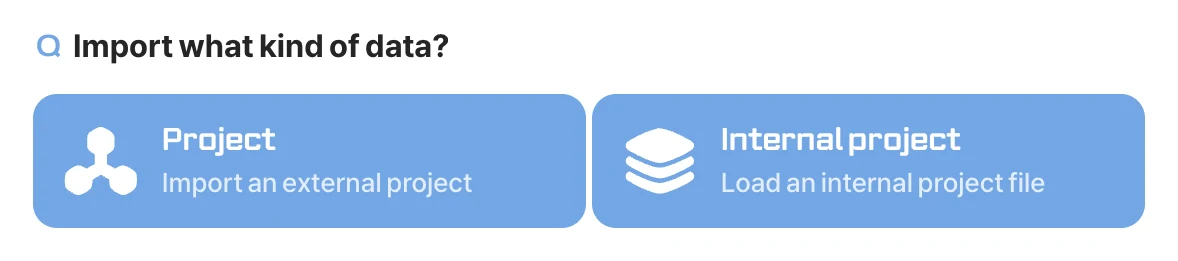
On the new device, sign in with the same account, choose Import → Project (import an external project file) at the bottom right of the project screen, and pick the .opkle file you backed up. It opens exactly as saved, so you can continue right where you stopped.
Moving between projects
Click the Project button at the bottom right to create a new project (New) or open another project on this device (Load). Click Load and the storage window lists your project files; double-click the one you want to open it.
When you ask a question in the community, sending the project file along helps us find the problem much faster. If you opened the community inside the editor, right-click the conversation and choose Send project to attach the current project right away.