Write what you want in the AI prompt bar at the bottom center of the editor, and Opkle AI operates the editor for you. When you don't know where a feature is, or need to repeat the same task many times, describe the result you want instead of hunting through menus. If the bar is folded into the rabbit button at the bottom right, click the button to open it.
Opkle AI also uses credits for each request. Check your remaining credits in the profile, which opens when you click the logo at the top left.
Get a feel with starter chips
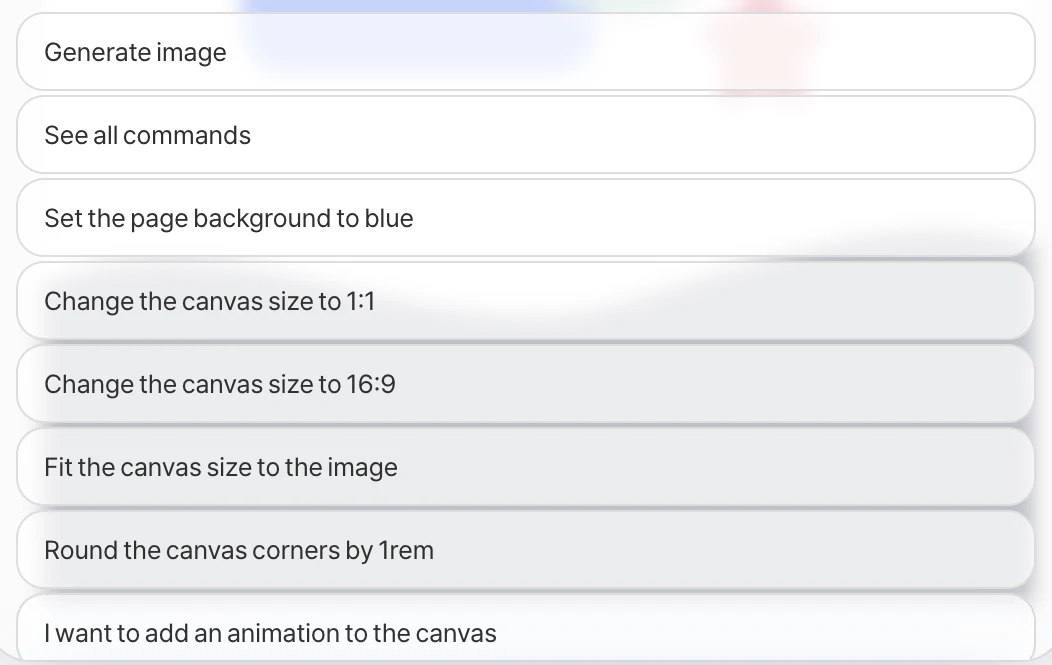
Click the input and ready-to-use sentences appear as chips. From artboard tasks like “Change the canvas size to 1:1” and “Fit the canvas size to the image” to “Make a new rectangle”, “Center the selected objects”, “Merge selection”, “Trace this image into vectors” and “Undo the last action”, just clicking them gives you a feel for what Opkle AI can do. Click the See all commands chip to see everything it can do at a glance.
Tips for asking well
Most important: select what to change first, then ask. That way Opkle AI isn't confused about what to change. Ask for one thing at a time, specifically, and give colors as color codes and sizes and distances as numbers for much more accurate results. Rather than vague words like “make it prettier”, write the values directly, like “set the font size to 32 and the color to #333333”. If you don't like the result, undo with ⌘Z and ask again in different words.
If Opkle AI can't do something, it will tell you. If there's a feature you wish it had, leave it in the community Feature ideas room.