To add a shadow or a glow to a shape or photo, there are two ways. For one or two quick touches, use the Filters section in the inspector; for layered, carefully built effects, use Layer style. You can use both together.
Quick touches in the filters section
Select a shape, text or photo, and the Filters section on the right lets you change blur, brightness, contrast, saturation and hue with sliders. Below them are shadow blur, shadow X and Y and shadow opacity, which is enough for a soft shadow under a button or card. Shadows look more natural with a larger blur and lower opacity. With a photo selected, invert and grayscale buttons and sharpness are added.
Slider moves are recorded in history one step each, so if you don't like a change, undo it right away with ⌘Z.
Stacking effects with layer styles
Right-click a shape or photo and choose Settings › Layer style to open a window similar to Photoshop's. In the list on the left, turn on the effects you want from bevel and emboss, stroke, inner shadow, inner glow, satin, color overlay, outer glow and drop shadow, click a name to set its values on the right, then click OK. You can turn on several effects at once, so combinations like a stroke plus a drop shadow for a sticker look are easy.
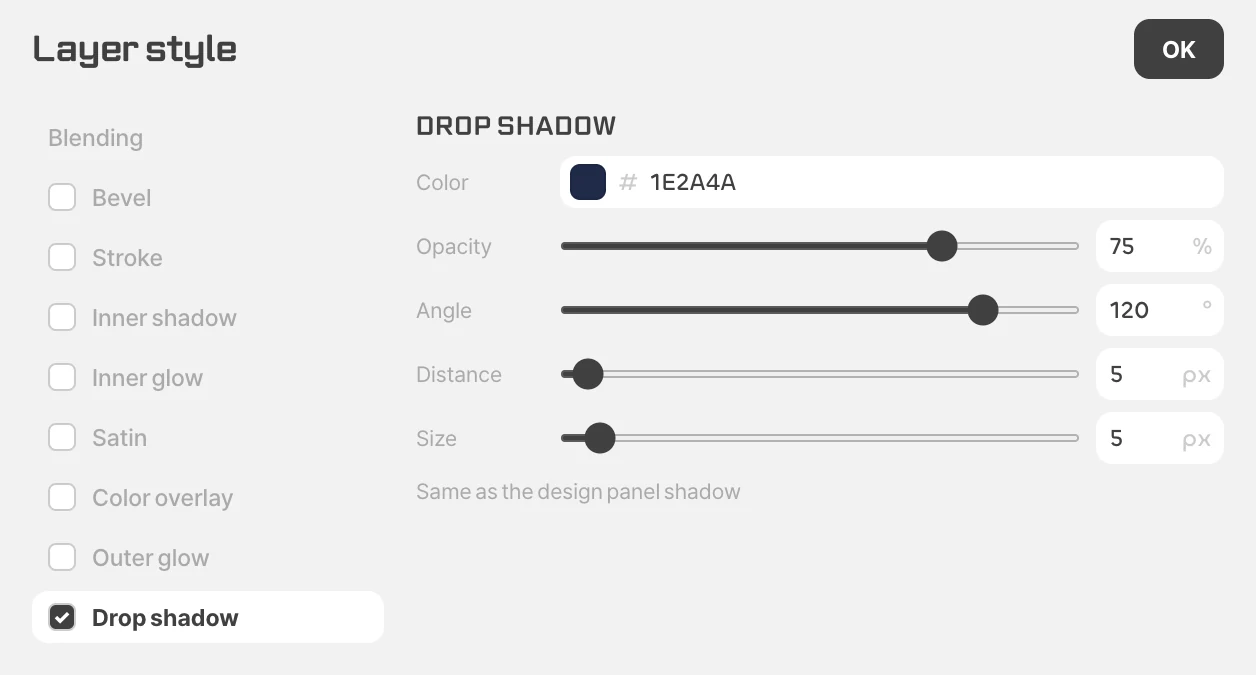
Fill opacity under Blending at the top is a special value. It fades only the content (fill) and leaves the stroke, outer glow and drop shadow as they are, so you can make a glass look that's see-through inside with a crisp edge and shadow. Layer styles don't apply to text, so use the shadow in the filters section for text shadows.
Reusing effects
To use an effect you built on several elements, copy the look with ⌥⌘C and paste it onto another element with ⌥⌘V. If you'll use it often, save it in Styles › Vector style to apply it with one click.
Effects that change a photo's pixels themselves, such as blur, distortion and artistic effects, are chosen in the Filters window in the toolbar. See «Brush, selection, retouch and filters» for details.