The features on this page need large AI models, so the data needed to handle a request is sent to a server and they use credits. Check your remaining credits anytime in Credit Balance in the profile, which opens when you click the logo at the top left.
Image generation
Right-click an empty spot in the layers panel or on the artboard and choose Create › Generate to open the image generator (the sparkle AI generate button in the toolbar and the «Generate image» chip in the AI prompt bar do the same). In the window, choose the Image ratio (1:1, landscape 4:3, portrait 3:4, landscape 16:9, portrait 9:16) and Image style (auto, photo, illustration, art, cartoon, sketch), and put any images you want to reference in References. Leaving the AI model on «Default» is fine to start.
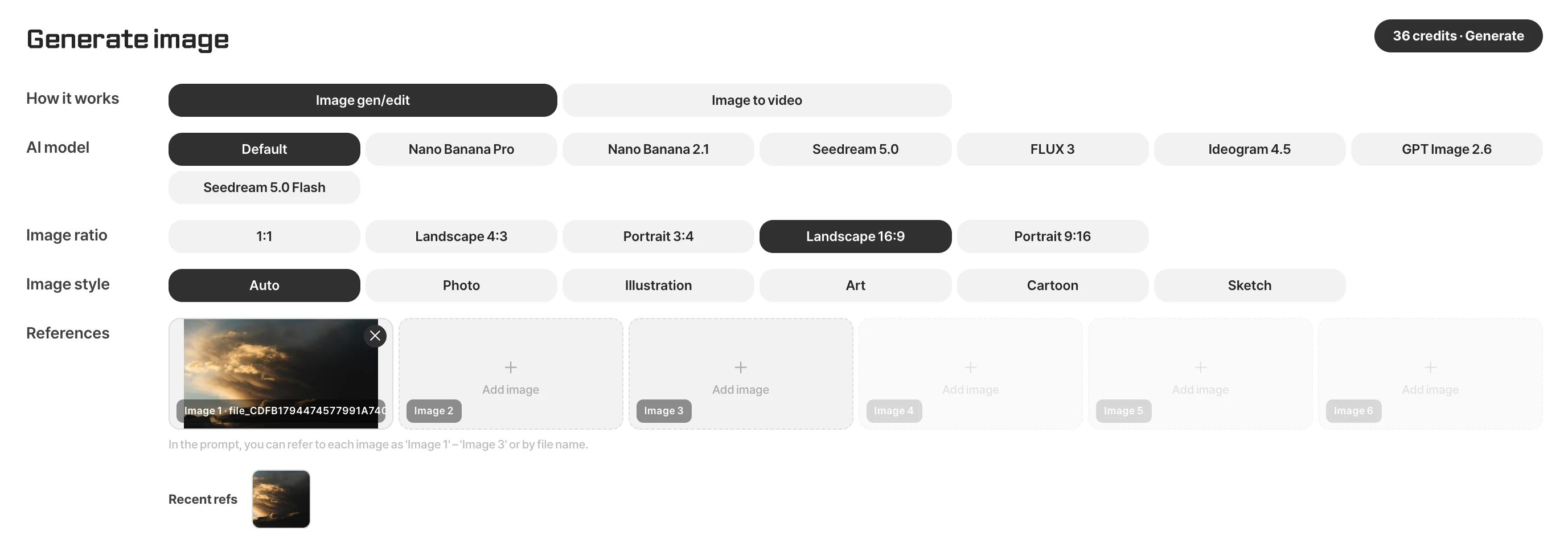
Describe the scene you want in the AI prompt bar at the bottom of the screen, not in the window. You can add up to six reference images, and a selected image goes in automatically as «Image 1», so you can describe things by referring to images, like “put the person in Image 1 on a beach”. The more specific you are about scene, mood, light and composition, the closer the result. The window's top right shows the estimated credits for the request. The generated image lands on the artboard, where you can crop, adjust and add text like any other image.
Image to video
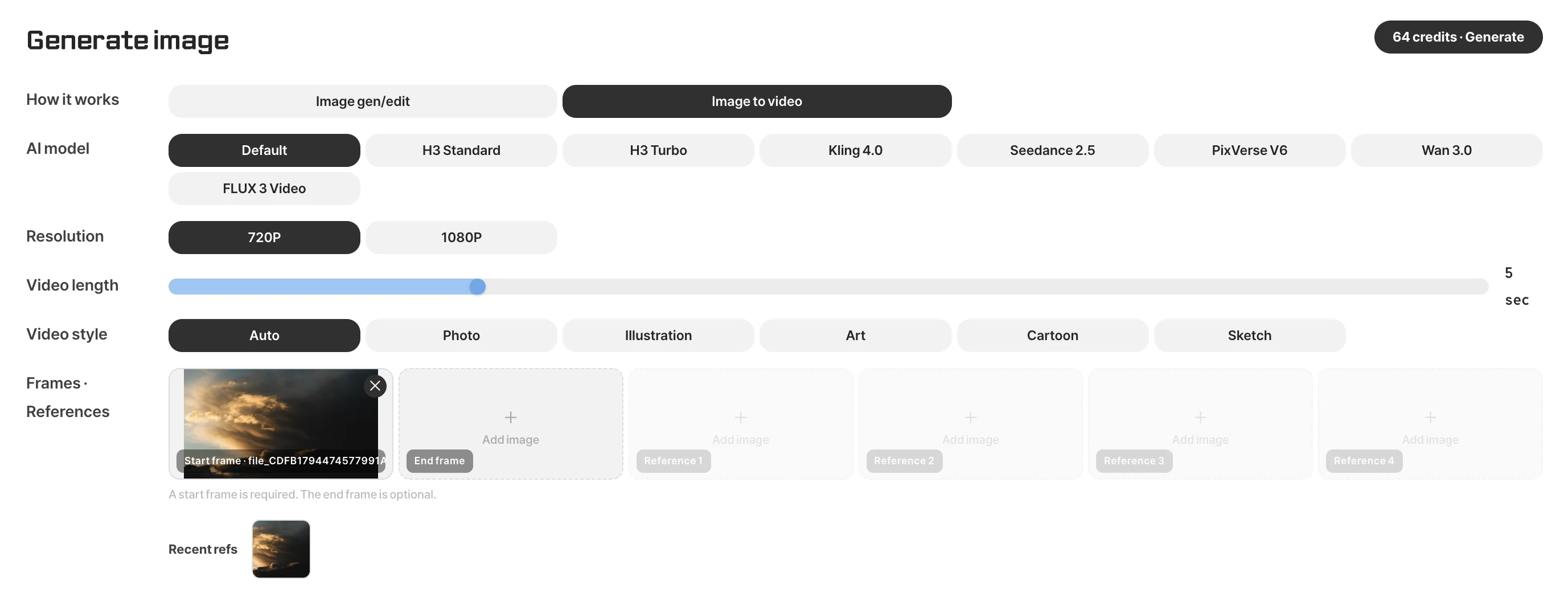
Choose Image to video under How it works in the same window to turn an image into a moving video. A start frame is required, and an end frame is optional. Set the resolution (720P · 1080P), video length and video style, then describe the motion you want in the AI prompt bar. A record of the images and videos you make is kept with the project.
Extending and filling images
Select a photo smaller than the canvas and choose Outpaint in the toolbar's AI tools group (or a photo's right-click Transform › Outpaint), and AI continues the picture beyond its edges to fill the artboard. It's useful for widening a portrait photo into a landscape banner; first widen the artboard to the size you want with crop (C), then run it.
In AI inpaint, choose «Fill» by right-clicking the canvas, and you can describe what should go in the painted area to paint in something new. Use it to add things that weren't in the photo, like putting a vase on an empty table.
Upscaling
Upscaling in the AI tools group (or a photo's right-click Transform › Upscale) makes a photo bigger and sharper. When a small photo needs to be printed or shown on a big screen, it reduces the blur you'd get from simply enlarging it.
Before you use it
Things may take a while when servers are busy. If you see a failure message, try again a little later. When using other people's faces or works as reference images, please make sure you have the right to use them.