This page explains how to bring work from other tools, and your fonts, photos and videos, into Opkle Editor. Most of the time a single drag and drop is enough, and each file type comes in a little differently.
Drag and drop is easiest
Most files come in the right way just by dropping them on the canvas. SVG comes in as shapes you can edit one by one rather than as a picture, and PDF and Adobe Illustrator (.ai) create one artboard per page, so multi-page documents are laid out as they are. Photoshop (PSD) keeps its layers, so you can pick up where you left off in Photoshop.
Photos (JPG · PNG · WebP) land where you drop them, videos (MP4 · WebM) come in as video layers, and font files (ttf · otf) are added to the font list in the Character section. Drop a Photoshop brush file (.abr) and nothing is placed on the canvas; instead its brushes are added to the brush tool.
With the Insert button
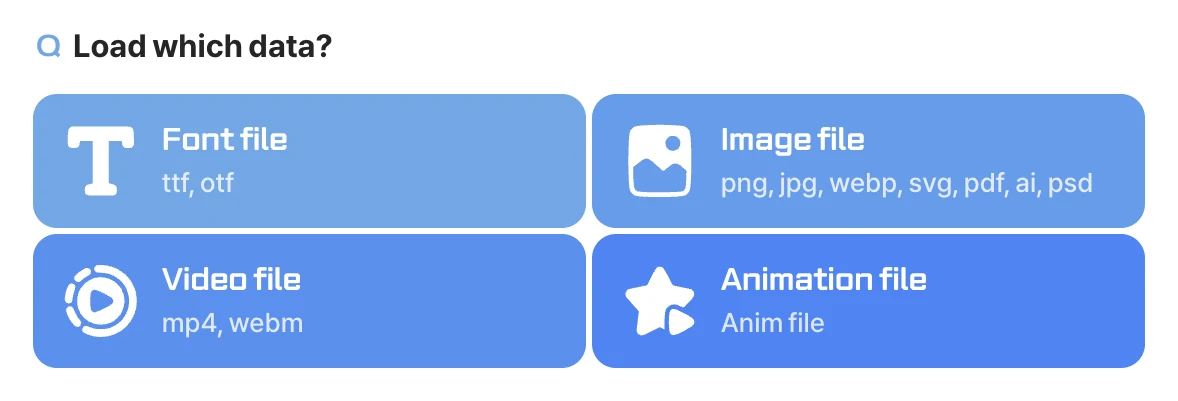
Click Insert at the bottom right and the «Load which data?» window lets you choose from font files (ttf, otf), image files (png, jpg, webp, svg, pdf, ai, psd), video files (mp4, webm) and animation files (animation settings you exported earlier). Use it when dragging is awkward or when you want to find a file in a folder. Images or SVG copied from other apps can also be pasted directly with ⌘V.
What to check after importing
If a font isn't installed on your computer, another font may be shown in its place. In that case, add the font file and choose it again in the Character section. Files with very complex effects may look slightly different from the original, so check the important parts once after importing. If a file looks different from the original, let us know in the community Bug reports room, or if you can't share the original publicly, send it via «Opkle Support».