Most vector design comes down to drawing, refining and combining shapes. This page covers using ready-made shapes, drawing your own curves with the pen, and fixing points one by one afterward.
Shape tools
Click the shape slot in the toolbar to open ten shapes, including rectangle (R) and ellipse (O) plus triangle, polygon, star, badge, AI star, asterisk, arc and donut. Pick one and drag on the artboard to draw; when you finish, the tool goes back to selection. Hold ⇧ while dragging to lock proportions for squares and circles, and hold ⌥ to draw from the center where you first clicked.
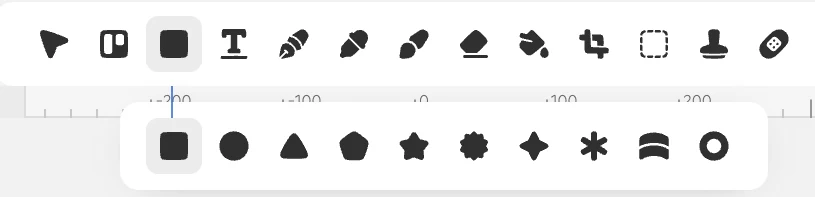
Options that differ by shape, such as a polygon's number of corners, a star's depth or a donut's hole, can be changed by right-clicking the canvas with that tool selected. Instead of picking a tool, you can also create text, paths, shapes and frames directly from the Create group when you right-click an empty spot.
Rounding corners
With the Radius tool in the selection group, pick corner points and drag to round the selected corners together. You can round only the corners you want, such as just the top two. Smoothing in the same group blends rounded corners into the straight edges more smoothly, which is great for sleek shapes like app icons.
Drawing curves with the pen
Press P for the path tool, then click the artboard to place points and drag to make curves. Click the first point again to close the shape, or press Enter or switch to selection with V to finish an open line. Pressing ⌘Z while drawing undoes only the last point, so you can fix things as you go.
After drawing, add and remove points with Add point · Delete point in the same group, and rub along a path with the Smooth tool to even out jagged parts. To draw freely by hand, use the Pencil in the brush group.
Refining points one by one
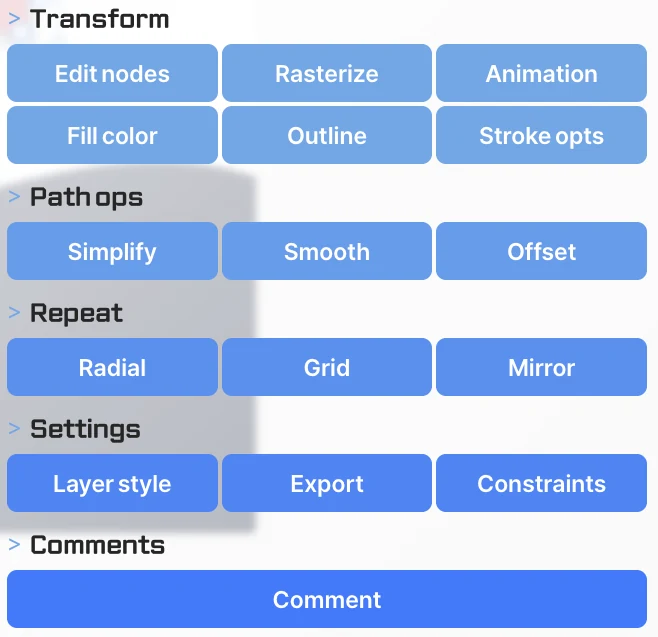
Select a path and press Enter, or choose Node select in the selection group, to select points individually. Drag a point to move it, and drag the handles coming out of it to shape the curve. Shapes like rectangles and stars are «live shapes» with shape options, so you can't edit their points directly; choose right-click Transform › To path to turn them into freely editable paths. After converting, options such as the number of corners no longer apply, so duplicate the original first if you might need it.