Finished designs can be exported as images, PDF or video depending on how they'll be used. Uploading to the web, sending to a print shop and handing off to developers each need different formats, so it's important to choose the method that fits your goal.
The Export button
Click Export at the bottom right and the «Choose an export method!» window appears. For images to post on the web right away, Optimized is the easiest: just choose a format and it makes one at 1980px on the long side. To set format, quality, size and background yourself, choose Image, and to get each layer separately, choose PNG layers.
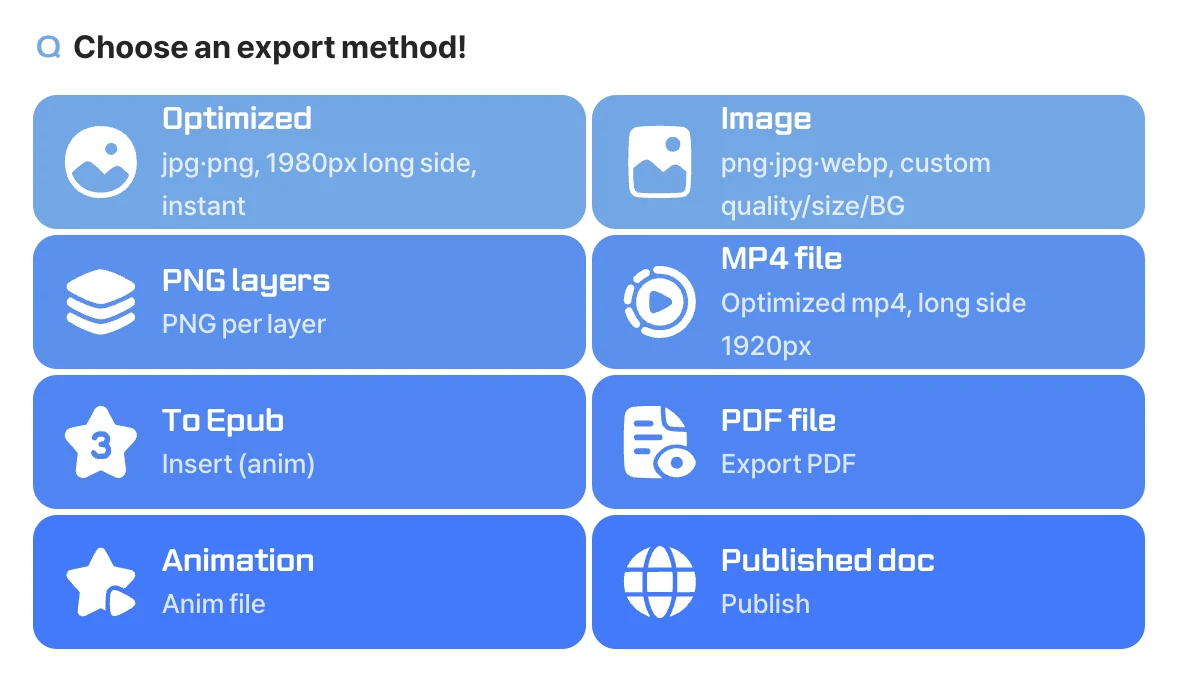
Documents for printing or sharing are exported as a PDF file. Each artboard becomes one page, and you can choose between viewer and print versions. Animations become video with MP4 file (1920px long side), and Animation gets just the settings file. With two or more artboards, you're asked whether to export the current artboard, all artboards or selected ones, and multiple files are bundled into one zip. You can also start right from the Export group by right-clicking an empty spot on the artboard.
The image export window
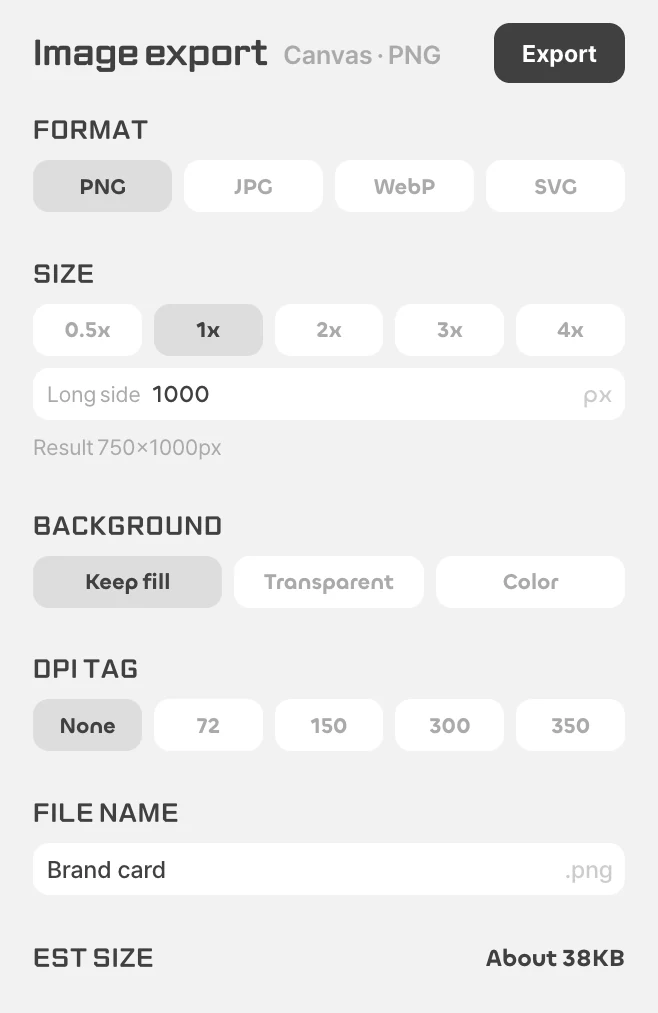
Choose Image to open a detailed window. Formats include PNG, JPG, WebP and SVG, and size is set as a scale from 0.5x to 4x or as a long-side length (px), with the resulting size shown as soon as you set it. For background, keep the artboard's fill, make it transparent or lay down another color, and for files going to a print shop, set the DPI tag to 300 or 350. Set the file name, check the Est size at the bottom and click Export at the top right. For web images, lowering the quality a little while watching the estimated size can cut file size a lot with no visible difference.
Different per layer, all at once
If layers need different formats, like icons as SVG and banners as PNG at 2x, use per-layer export settings. Select a layer and click Export + at the bottom of the inspector, or choose right-click Settings › Export, then set the format (PNG · JPG · WebP · SVG) and scale. You can add several settings to one layer. Once saved, a single ⇧⌘E exports everything you've set up at once, so you don't have to export each one again every time you change the design.
Before you export
If you need a transparent background, choose PNG or WebP; JPG doesn't support transparency. Anything outside the artboard isn't included in the result, so check that elements that must not be cut off are inside the artboard. Setting the scale to fit where the file will be used gets you files that are both sharp and light.