The features on this page compute directly on your computer. Photos never go to an outside server and no credits are used, so you can use them with confidence on personal photos and unreleased work. The first time, you may wait a little while the AI model downloads, but after that it runs right away.
Background removal and AI selection
Right-click a photo and choose Transform › Remove BG to keep only the person or object and clear the background. It's the first feature you'll reach for when cutting out product photos or compositing a portrait onto another background.
To select a specific part rather than the whole background, use the AI selections in Pixel select (W). Select subject finds and selects the main subject when you click the photo, and Object select previews the object under your cursor so you can adjust the range with the wheel before picking it. Depth select, sky select and focus area are in the same group, and a photo's right-click Selection › AI select leads to the same feature.
Erasing and restoring
Pick AI inpaint from the inpaint group in the toolbar (the sparkle brush), paint over what you want to remove and let go, and it fills the spot naturally to match the surrounding color and texture. Try it on power lines or passers-by in a photo. Right-click the canvas to switch between «Erase» and «Fill». Erase runs on your computer, while fill, which paints in new content you describe, is server AI and uses credits.
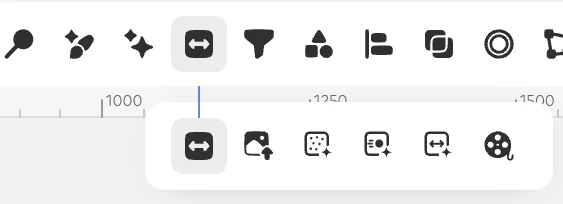
The AI tools group next to it holds the rest. Rescue grainy noise and compression artifacts with AI denoise, and shaky, smeared photos with AI deblur. Long jobs can be stopped with Esc. Content-aware protects people and objects and shrinks or stretches only flat areas, changing the ratio naturally, for example when turning a portrait photo into a landscape banner.
Adjusting and transforming images
ML adjust, which appears when you select a photo, sets color and brightness when you choose general or portrait and click it. In the AI group of the filters window you can use Line art (anime line art, bold outline, pencil sketch), Colorize, Style transfer to apply a reference image's style, Lens blur that reads depth to blur only the background, Sky replace and Skin retouch. Lens blur is especially handy for adding portrait-mode background blur to phone photos.
When it doesn't work well
Processing may take longer depending on your computer's graphics performance and memory. If you see a message that memory is low, make the photo smaller and try again.