






Until now, the way AI has entered design has mostly been “making pictures for you.” You describe a scene in words, an image comes out, and you carry that image into a design tool to polish it. Lately, though, a different current has appeared. AI is no longer stopping at making images; it is operating the design tool itself. It resizes artboards, aligns shapes, fixes a whole set of documents at once, and has even started building new features and adding them to the tool.
This change is less about taking designers' work away and more about lifting the repetition and housekeeping off their shoulders. People still decide what to make and what counts as a good result. There is simply one more hand to carry out those decisions. To use that hand well, it helps to first understand how AI connects to a tool.
In this article, we look at three ways AI can work with a design tool, one at a time.
1.AI inside the tool — handing work to Opkle AI in plain words.
2.Connecting your own AI to the tool — letting an AI such as Claude operate the editor through MCP.
3.AI that builds features — having AI create plugins for you, even if you know no code.
4.A summary of when to use which of the three.
5.The judgment that stays with you in all of these approaches.
AI Inside the Tool — Handing Work Over in Words
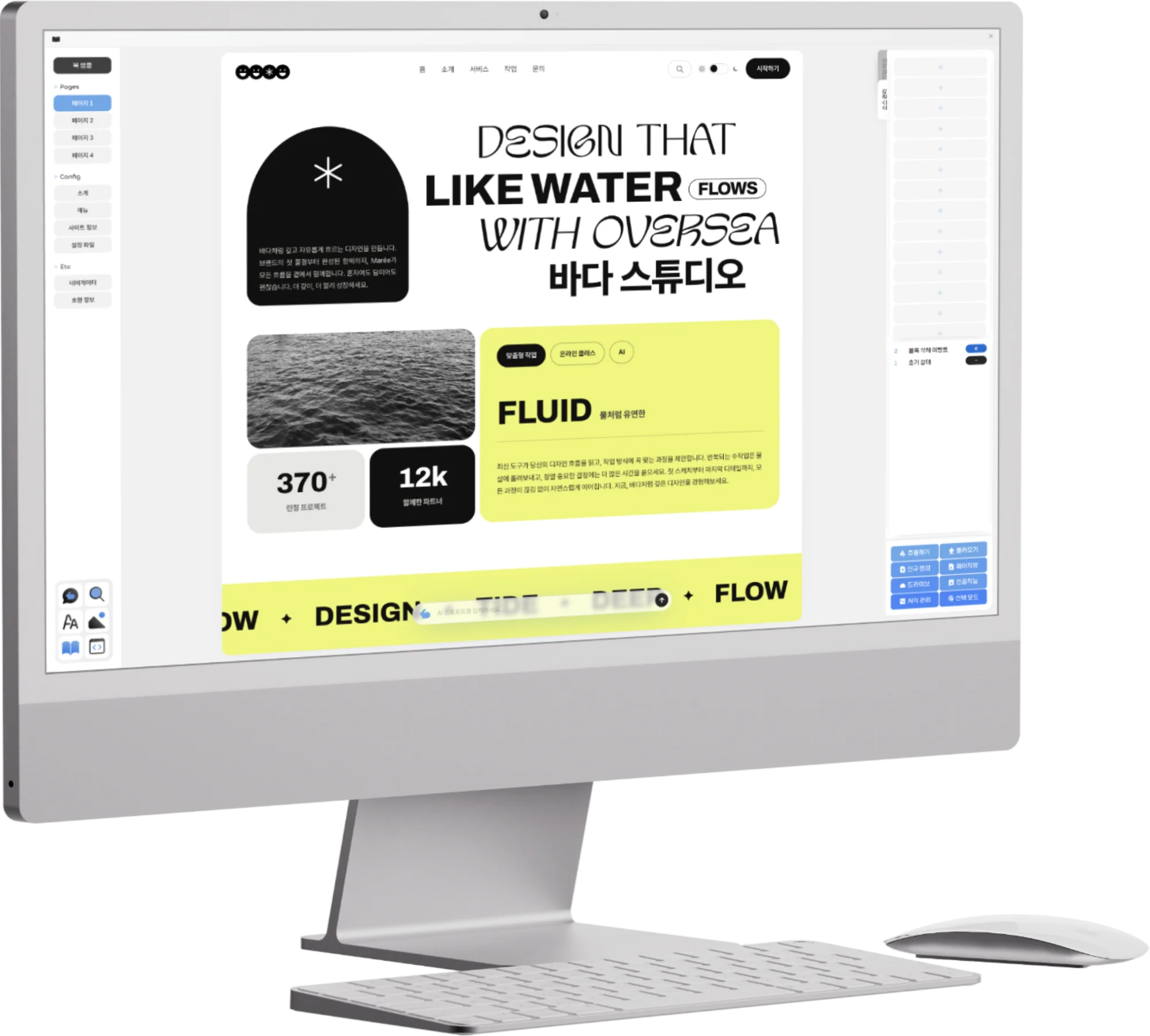
The closest approach is to hand work to the AI that lives inside the tool. Type what you want into the AI input box at the bottom center of Opkle Editor, and Opkle AI operates the editor directly to help. When you don't know where a feature is, or you have to repeat the same job many times, you can describe the result you want instead of hunting through menus. Requests like “Change the canvas size to 1:1,” “Center the selected objects,” “Merge the selected objects into one,” or “Trace this image into vectors” all work this way. When you click into the input, ready-made sentences appear as chips, so just trying a few gives you a feel for what you can delegate.
Delegating well is a lot like asking a person for help. Select what you want to change first, then make the request, and describe one specific job at a time. Writing the values outright, as in “Font size 32, color #333333,” gives more accurate results than a vague request like “make it prettier.” If you don't like the result, undo with ⌘Z and ask again with different wording. Generating images and turning images into video continue in the same input box, and Opkle AI uses credits for each request.
Connecting Your Own AI to the Tool — MCP
The second approach is to connect an AI you already use to the design tool. The connection method used here is MCP (Model Context Protocol). MCP is an agreement that lets an AI call the features of an outside program as “tools,” so any program that honors the agreement can have its features called directly by an AI.
While it is running, the Opkle Editor desktop app opens an MCP connection point inside your own computer. Connect an AI such as Claude Desktop, Claude Code, or Codex to it, and the AI can read and edit the canvas and layout documents of the project you currently have open. The connection details are in the “AI Connection (MCP)” box of the profile window, which opens when you click the logo at the top left of the app. With Claude Desktop, clicking connect brings up an install window and you only press “Install.” With Claude Code, you paste one copied command line into the terminal and you're done. With Codex, you paste the copied settings snippet into your settings file.
Safety is built in too. The connection point opens only inside your own computer, and you need a token to get in. When the AI writes files on your computer, it can use only the folders you have allowed in the app's confirmation window, and you can withdraw that permission at any time. A connected AI bundles multi-step work into a single script, checks the result with a preview, and refines as it goes. It shines especially at jobs that are tedious and slow for a person, like changing the titles of ten posters at once, or loading a folder of photos and placing them one after another into the same frame.
AI That Builds Features — Plugins
The third approach is to have the AI build the tool's features themselves. No matter how many features a design tool has, it can't hold every person's repetitive tasks. That's why many tools let you add features through plugins, but until now, making a plugin was a job for people who could code.
In Opkle Editor, once you have connected an AI to the desktop app, you simply describe the feature you want, and the AI builds the plugin, tests it, and places it in the Plugins tab. The fastest way is to tell it three things: what it should attach to, what should come out, and what you want to adjust. You can say, “Make me a plugin that draws a barcode as vectors when I enter an ISBN number, with adjustable bar height,” or “Make me a filter that places my logo at the bottom right of a photo, and let me choose the logo from a file.” If you later find something to improve, just say so, as in “Widen the slider range,” and it will fix it as a new version of the same plugin, with the values you were using kept as they were.
You can share the plugins you make with your team or post them to the plugin market for others, and you can also download plugins other people have made. Default plugins such as a gradient generator, a barcode and QR generator, and charts come built in, with nothing to download. Plugins run in a safe sandbox where they can't reach the internet or do anything that hasn't been permitted, and a plugin downloaded from the market or shared with you brings up an approval window the first time you use it, showing where it came from and what permissions it asks for. A plugin that an AI posts to the market goes up in an unpublished state, so it becomes visible to others only after a person checks its contents and publishes it.
When to Use Which
The three approaches don't replace one another. You divide them up by the size and nature of the job.
By use case
If you want to change one or two things on the current screen quickly, Opkle AI inside the tool is the closest fit. It also works in a web browser.
If you need to repeat the same job across many documents, or load and organize many files from your computer, your own AI connected through MCP is the right fit.
If you expect to keep doing the same kind of job in the future, it's better to turn it into a plugin. Build it once, and you can use it with a single click, no AI needed.
Say you make a weekly card news series. Changing the font size on this week's cards is something you can hand to Opkle AI in words. Swapping the logo on the last three months of cards for a new logo all at once is faster with an AI connected through MCP. And if you add the date and issue number to the bottom of every weekly card in the same style, building a plugin that does it will stay convenient the longest.
Judgment Stays With People, Even With More Hands
As AI becomes able to operate tools directly, the center of gravity in design work is shifting little by little. The ability to memorize where menus are and repeat the same job dozens of times matters less, while the ability to decide clearly what to make and judge the result accurately matters more. AI can carry out a request like “Change all the titles to 32” quickly, but it won't judge whether the titles should be 32.
So there are a few things worth keeping in mind when you delegate to AI. Always check the result with your own eyes, and undo it if you don't like it. Back up your project before important work. When you handle other people's faces or copyrighted works, check the permissions first. And rather than using what the AI produces as it is, keep a final step where you choose and refine it by your own standards.
When AI operates a design tool, it ultimately means designers can spend more of their time on judgment. Leave the repetition to the hands, and let people set the direction. When that division of labor works well, AI becomes less a stand-in who draws for you and more a colleague you work alongside.
Key Takeaways
AI is now expanding beyond making images toward operating design tools directly.
With Opkle AI inside the tool, you can delegate work in words by selecting the target first and writing the exact values to change.
Connecting your own AI, such as Claude, to the desktop app through MCP lets you hand off repetitive work that spans many documents and files.
Even without knowing code, you can have AI build plugins, and share them or download others' through the market.
Use Opkle AI for the one-off job now, MCP for many documents, and plugins for what you'll keep doing, and leave judgment and final review to people.
© Abstract Cloud. All Rights Reserved.
+82 10-2747-3403
are copyrighted by Opkle.